Pre-Footer Module
The blue footer at the bottom of your CMS site provides UC San Diego-wide information on every page of your site. It is not editable (although WTS Admins can update the 'feedback' link).
The new pre-footer module gives you space to add your site-specific contact information, social media, and select links to the bottom of every page of your site. Once added by WTS, you can edit the pre-footer within the parameters provided.
Best Practices
- Add basic content that will appear on every page of your site.
- Limit the content to critical links so you don't detract from the focus of the page.
- Not all sites need a pre-footer — this site doesn't have one. Don't add this feature just to add it. Have a clear purpose for what you want to communicate.
- Users will expect your pre-footer links to link to content on your site. Use external links sparingly or not at all.
Basic Information
- The pre-footer can have 3 or 4 columns
- One column can be a dedicated contacts column
- One column can be a dedicated social media/ school logo column
- Only official school sub-brand logos are available
- Only officially supported social media icons are available:
- Bluesky, Facebook, Instagram, LinkedIn, Threads, TikTok, YouTube, X (Twitter)
- After you've filled in the pre-footer content, you must contact WTS to have it implemented for the first time
- Updating the pre-footer requires publishing your entire site
- The pre-footer is not available for pages within Blink or TritonLink

To edit the pre-footer module:
Important: Since the pre-footer is on every page of your site, you'll need to republish your entire site after making updates to the pre-footer.
- Navigate to your _modules folder and select pre-footer.
- Click Edit to bring up the edit screen.
- Complete these fields:
- Pre-footer Configuration:
- Column size?: 3 or 4 columns
- Select a configuration:
- Options for 3 columns:
- Link List + Contact + Social Media/Logo
- Two Link Lists + Contact
- Two Link Lists + Social Media/Logo
- Three Link Lists
- Options for 4 columns:
- Two Link Lists + Contact + Social Media/Logo
- Three Link Lists + Contact
- Three Link Lists + Social Media/Logo
- Additionally, if you are using the Social/Media/Logo option in a 4 column configuration, Select placement of Social Media/Logo column: Right or Bottom
- Options for 3 columns:
- For each Links Column (1 or more):
- Header (optional)
- Links: Up to 8 per column:
- Link Text
- Link Type: Internal or External
- Internal Link (file selector) or External Link (fill this in)
- For the Logo and Social Media Column (if selected)
- Header (optional)
- School Logo: Select 'None' or one of the pre-approved School Logos
- Social Media (multiple available)
- Social Media: Select one of the supported social media icons:
- Bluesky
- Threads
- TikTok
- Social Media Link: Enter your link. Note: The Social Media Icon will not appear if this is empty.
- Social Media Account Name: (required) Enter the name of your account for accessibility purposes (for example, Department Name Youtube)
- Social Media: Select one of the supported social media icons:
- For the Contact Column (if selected): Note: all falls are optional
- Header
- Address: Note: Address falls will be formatted close together, with only minor line spacing
- Address One
- Address Two
- City
- State
- Zip Code
- Phone
- Fax
- Contact Link
- Contact Link Type: Internal or External
- Internal Link (file selector) or External Link (fill this in)
- Pre-footer Configuration:
Important:
You can fill in the pre-footer fields without WTS assistance. But the first time you want to activate the pre-footer and make it live on your site, a WTS admin will need to set this up. Complete the request form when you're ready.
Examples
Pre-footer with no contact or social media columns:

3 column pre-footer with social media content on the bottom:
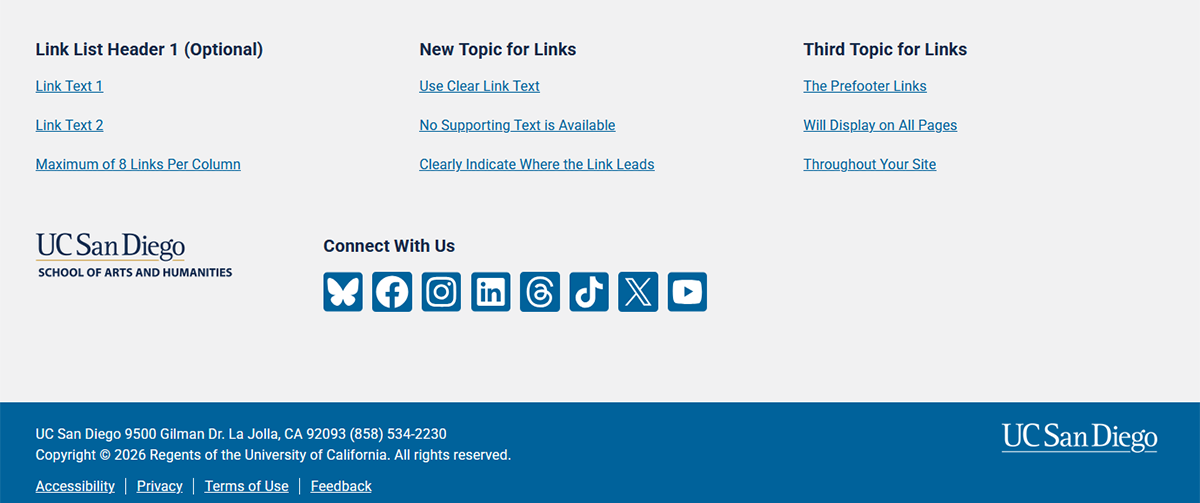
4 column pre-footer with the maximum of 8 links in a links column:
